[ 출처 : https://sapyard.com/lazy-and-smart-abapers/ ]
Let us see what are the common shortcuts and helpers which smart ABAPers of this age (not lazy) have in the same old ABAP editor.
1. Copy the same line below the existing line i.e duplicate the statement.
Use Ctrl + D to copy duplicate lines just below it.
 2. Copying multiple rows of one column and paste them. Remember only one column not all columns (copying all the columns is easy).
You can copy multiple rows of one column using Alt + drag your cursor.
Can you copy just one column in ABAP editor? Yes, we can.
Check the image below. Only constant lc_tab is sele
cted and the other columns of the other rows are not.
Press Alt + drag your cursor to left till the column end and then drag down.
Then press Ctrl+C and then go to the rows where you want to paste it.
You need to apply the same trick where you want to paste it. Check this image. You need to hold Alt and drag the cursor vertically down and right side to create space for the copied rows of one column.

Check the copied rows of one column are pasted (Ctrl + V) in your selected area.
SAP Techies
For ABAPers: Fun about ABAP for SAP HANA
This is quite handy when you have repetitive words to be written in multiple rows. In the above example, it is Tab separator constant. In another case, it might be key work TYPE to be written while BEGIN OF TYPE declaration. Also, you can copy field name and data element from SE11 structure/table and paste it into your editor and then use Alt + drag to add TYPE.

Initially, you might find some difficulty selecting columns using the trick. Keep trying and using and in no time you would start appreciating it more and more. 🙂
Also Read: Back to Basics
3. Line Separators or Code Separators
If you need a dashed line in your code, it might be for separation of code or modularization or just for making your code pretty. Do you type ‘*’ or ‘”‘ and then press ‘-‘ till the end of the line? Sometimes you might want to use ***** asterisks to do the same. Do you press ‘*’ till the end?
You should be taking advantage of the code completion feature of SAP. Just type ‘*–‘ and you get suggestions. Similarly type ‘***’ and you get suggestions. Hit ‘TAB’ key and it writes the full code for you.
You might be using IF-ELSE, DO-ENDO, LOOP ENDLOOP, CASE ENDCASE auto
completion. But have you ever used IF ELSE ENDIF? Just type ife, and you
get the suggestion. In fact, you can make SAP auto suggest you for
anything and everything you code. It is completely in your control.

Where can we find the list of all Code Completion short codes?

Click the small Options icon on the right-hand side bottom corner in your editor. You can control the timing and properties of Code Completion. Code Template would actually have the code which would be written when you hit TAB when code completion suggestion creeps in.
You can create your own custom Code Completion list and add them to the repository.
You might like this: Are you an ABAP Coder or a Programmer?
4. Program Templates
Whenever an ABAPer creates a new program, they have some codes which are needed in each and every program they created. Flower box, revision log, Selection Screen, Program Events etc. Usually, we refer to another program and copy the template.
Check, I am creating a fresh new program and start typing ZZ_TEMPLATE. As I complete the word the auto-completion is visible and when I hit ‘TAB‘ key, the whole program skeleton is written for me.
The idea is to have the template for all the needed areas. Flower box, revision log, selection screen, events. Now, once I have the template, I just give the correct program name, description, logs and change the selection screen fields. If I do not need checkbox or radio buttons declaration, I delete them.
Also Read: End to End Configuration and Implementation of Two SAP Fiori Apps with no Coding
I remember in some projects we had the custom Pattern saved and used for the same purpose.
But later I realised, SAP has provided a smart way to avoid creation of that custom Pattern (since Pattern is also a development which we need to save in transport or local). Click the same small Options icon again on the right-hand side bottom corner in your editor. Hit Code Templates ->Add -> Give the name & description -> OK.

Paste your template code and Save it. Now everyone using this development box can use your template to get the job done faster. 🙂

Note : You can create one template for any work which you need very often, for example, selection screen snippet or file validation code or F4 Help code or MODIF id code etc. If you do not remember some syntax, just save a template for it and you do not need to remember it for life. 🙂
If you like the template and want to use it, you can copy from this file. Template File.
But most projects will have their own flower box and templates, so use your project specific ones and save in the template.
Also Read: Do all ABAPers know Fixed Point Arithmetic?
5. Save the code in PDF format
Sometimes you want to take a backup of your code. Usually, we copy and paste it to a notepad or we go through Utilities -> More Utilities -> Download. But keeping your code back up in PDF format has its own beauty.
Just click the same icon at the bottom right of your editor, go to Keyboard option and look for File.ExportPDF short cut. For my case it is Shift + P. You can change this keys and assign your favourite keys to save as PDF. I have kept Shift + P unchanged.

Go to the desired program which you want to save in PDF. Hit Shit + P or any other keys if you have changed it. Save at the desired path you want.
The code in PDF file always looks better. Isn’t it? 🙂
6. Have charm in the editor where you spend maximum time at work.
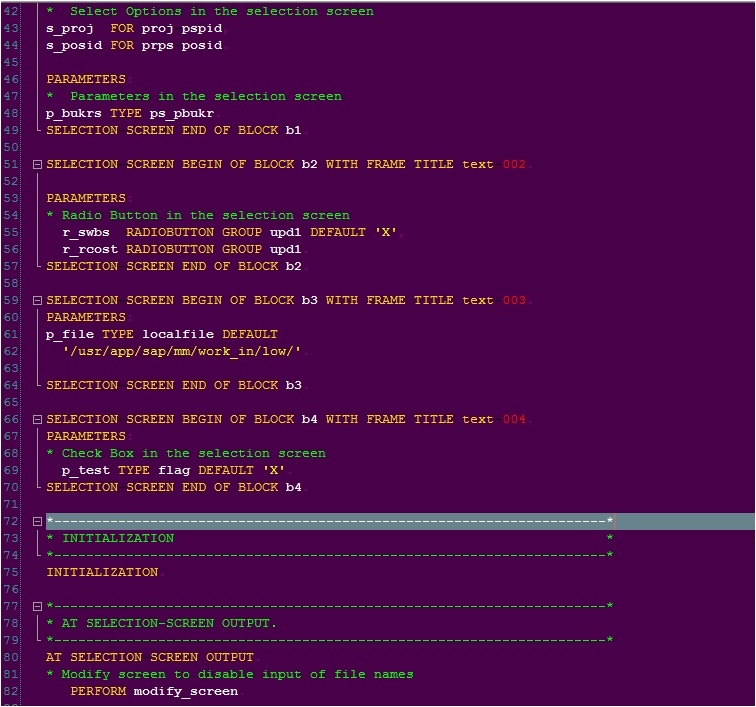
There should always be spice in your life. If you are bored of looking at the blue screen of your editors or just want to customize the fonts and colours for better readability or want different colours for fun or want something which soothes your eyes, check the below image.
This the current configuration of my workplace.
You can configure it for yourself using the same small icon on the right bottom corner of your editor. Choose Fonts and Colors. Below is the setting for my editor. Try and have fun!!
We have tried to reveal that small Options icon on your screen in this article. Hope after going through this post, that icon can no longer hide from your sharp eyes.
If you have some more short codes/cuts or tricks or any other interesting stuff, please do share it with us. If you have something which can help us be more smart/lazy, that would be more welcomed.